
How To: Change LinkedIn Profiles We Engage With (Amplify Members)
- Group Bloggers

- Nov 11, 2025
- 1 min read
Updated: Nov 12, 2025
As part of the Amplify membership package we engage with the LinkedIn posts of up to 5 profiles from your company.
One of the profiles can be the company page, but you will get even more traction with the algorythm if we engage with active employee profiles.
At signup we ask for these profile URLs but you can change them anytime based on changes at your company, or changes in the level of activity of each person.
You can make this update yourself quickly and easily right from your dashboard on the group blog site.
How to Change Your LinkedIn Profiles URL’s
To get started:
Log in to your account on the group blog site.
Click your profile icon or name in the top-right corner.
Select Edit Profile from the dropdown menu.

OR, click on ‘Profile’ in the menu bar on the left side of the screen.
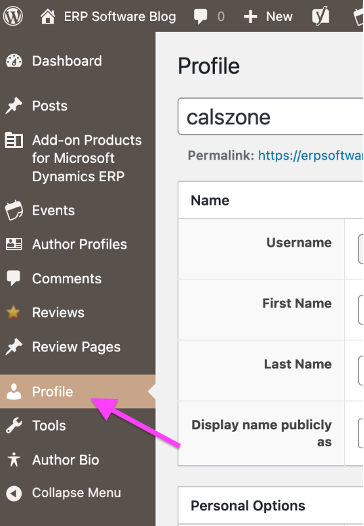
From there, scroll down the page to LinkedIn Profiles, below Member Profile Information section.

In this section you can add/update any or all of the LinkedIn Profiles
When you are complete, click the Update Profile button. The Blog Social Team is automatically notified of any changes or additions to your LinkedIn Profiles.
Need Help?
As always, if you have questions or run into any issues, feel free to reach out to us. We’re happy to help.


Comments